Securing MCP Traffic with Entra GSA – Part II
Every AI agent you deploy now speaks a new protocol. The Model Context Protocol (MCP) has quietly become the standard way large language models reach out to tools, APIs, files and databases. That is enormously useful — and it is a brand new, largely ungoverned egress path out of your environment.
In this post I walk through the MCP firewall in Microsoft Entra Internet Access, using the exact configuration I built in my own lab tenant. By the end you will have a default-deny MCP policy: every MCP server is blocked unless you explicitly approve it, enforced at the network edge, tied to user identity through Conditional Access, and fully logged. I finish with the tenant fully locked down — which, as you will see, is Microsoft’s recommended starting position rather than the finished article.
Note to access the first part click here
Why MCP needs its own firewall
MCP servers expose real capability: file access, database queries, code execution, ticket creation, repository writes. From a network point of view, though, an MCP call is just HTTPS to a hostname. Your existing web filtering sees api.githubcopilot.com and shrugs — it has no idea whether the agent is listing harmless documentation tools or invoking a tool that pushes code to a repository.
That gap creates a few very practical problems:
Over-broad tool access. A server you trust for search may also expose write or delete tools you never intended to allow.
Data exfiltration. A malicious or prompt-injected agent can use a legitimate MCP tool as the exit door.
No audit trail. Without payload inspection you cannot answer “which tools did our agents actually call last month?”
Global Secure Access closes this by inspecting the MCP protocol itself. It parses JSON-RPC 2.0 over streamable HTTP and Server-Sent Events, then applies Allow or Block decisions against the server URL, the tools, the resources, the prompt templates, the MCP methods and even the protocol version — without any change to the MCP spec, the client, or the server.
The lab at a glance
Four objects do the work, and they chain together. Miss one link and nothing is enforced.
| # | Object | What I configured | Why it matters |
|---|---|---|---|
| 1 | TLS inspection policy | REDACTED TLS POLICY — default action Inspect | MCP messages live inside the encrypted payload. No decryption, no enforcement. |
| 2 | MCP policy | REDACTED MCP POLICY — default action Block, plus one explicit block rule | The enforcement decision itself. |
| 3 | Security profile | REDACTED SECURITY PROFILE — priority 101 | Groups the policies into one enforceable bundle. |
| 4 | Conditional Access | REDACTED ACCESS POLICY — session control | Binds the profile to users and makes it identity-aware. |
Tip Think of it as a pipeline: TLS inspection makes the traffic readable → the MCP policy decides → the security profile packages it → Conditional Access assigns it to people.
Prerequisites
Global Secure Access Administrator to build the policies, and Conditional Access Administrator to enforce them.
The Global Secure Access client installed on a Microsoft Entra joined (or hybrid joined) device. My test device was Windows 11 Pro.
The Internet Access traffic forwarding profile enabled, with the right users assigned.
TLS inspection configured and working — this one is non-negotiable, and it is where I would start.
Step 1 — Turn on TLS inspection
MCP traffic is HTTPS. Everything the firewall needs to make a decision — the tool name, the method, the server metadata — is inside the encrypted body. Without TLS inspection, Global Secure Access can see the hostname and nothing else, so your MCP rules will simply never match.
1.1 Provision the inspection certificate
Go to Global Secure Access > Secure > TLS inspection policies and open the TLS inspection settings tab. You need a certificate authority that the service uses to re-sign traffic, and the corresponding root CA must be trusted by your endpoints.
In my lab I used a self-managed CA. Microsoft also offers a Microsoft-managed certificate in preview, which removes most of the PKI work.
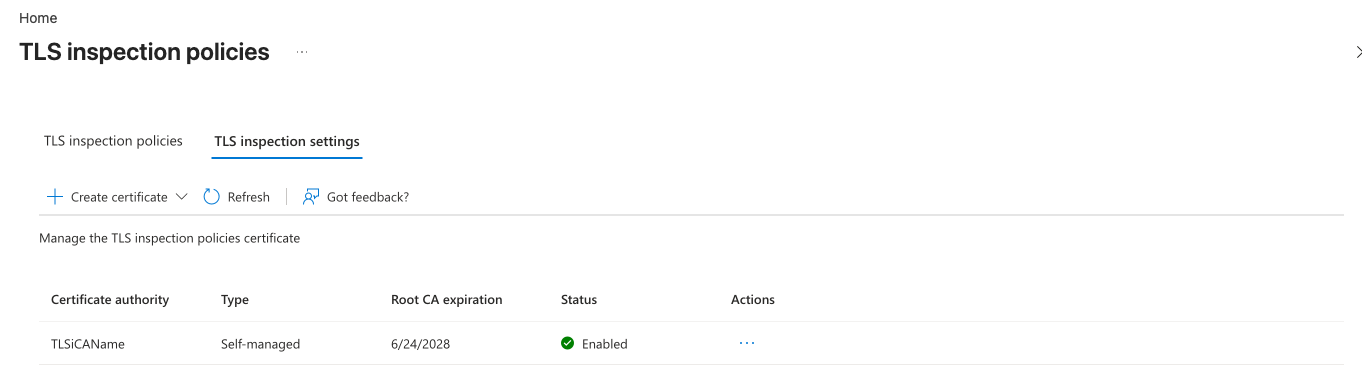
Watch out If the root CA is not deployed to your client devices, users get certificate errors on every inspected site. Roll the certificate out with Intune or Group Policy before you enable inspection broadly.
1.2 Create the TLS inspection policy
Back on the TLS inspection policies tab, I have a single policy named REDACTED TLS POLICY.
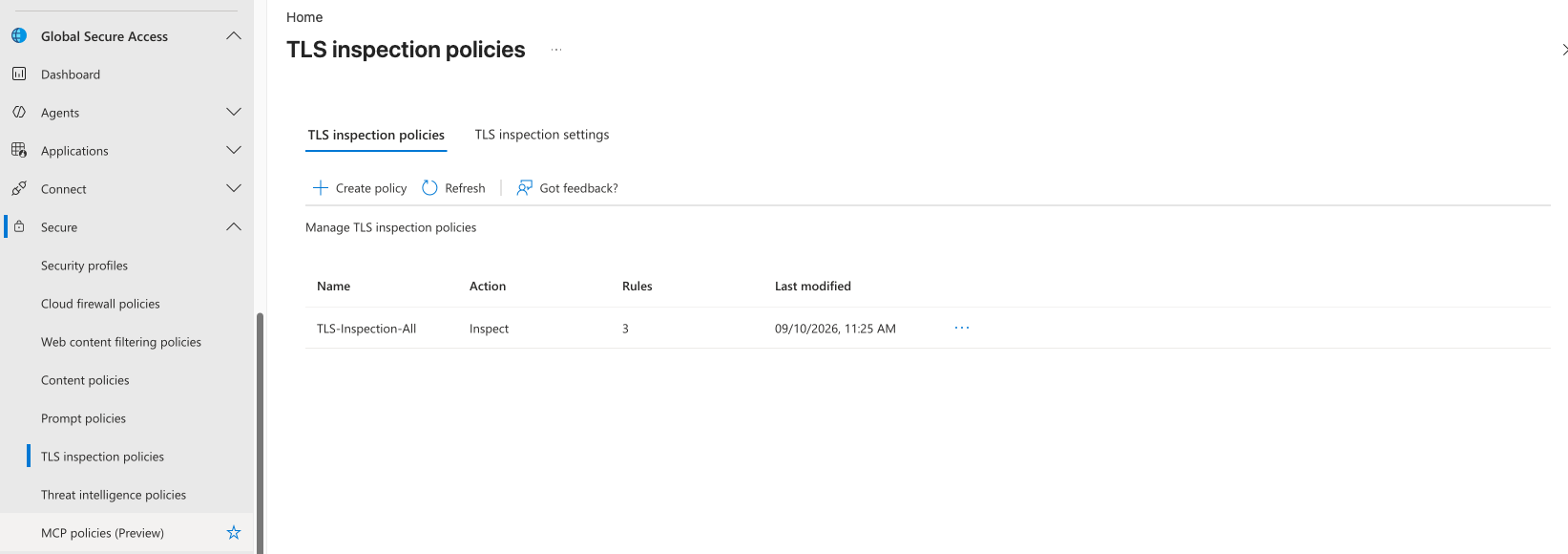
The key setting is on the Basics tab: the Default action is Inspect.
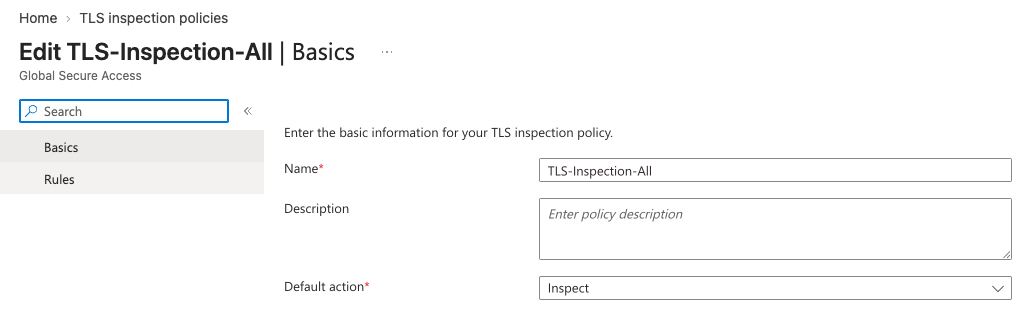
Note This detail matters more than it looks. Because the default action is Inspect, any destination that is not explicitly bypassed gets decrypted — including MCP endpoints I never listed by name. If you instead set the default to Bypass, you must add every MCP endpoint FQDN by hand or your MCP rules will silently never fire.
1.3 Review the rules
The policy carries three rules. Two are created for you; only the middle one is mine.
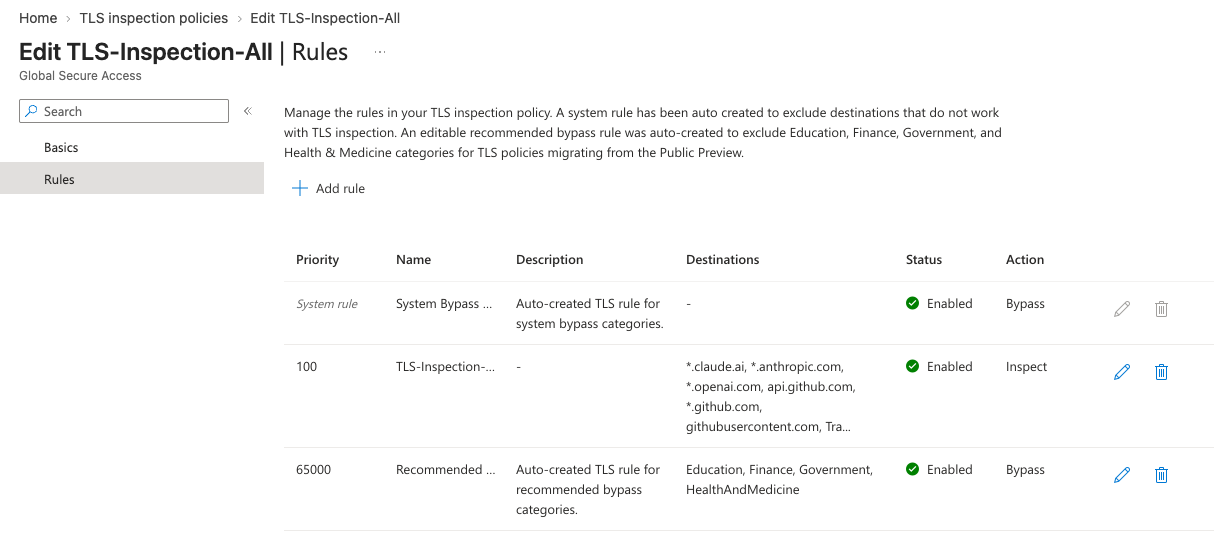
My priority 100 rule explicitly inspects the AI and developer domains I care about, plus the Travel web category:
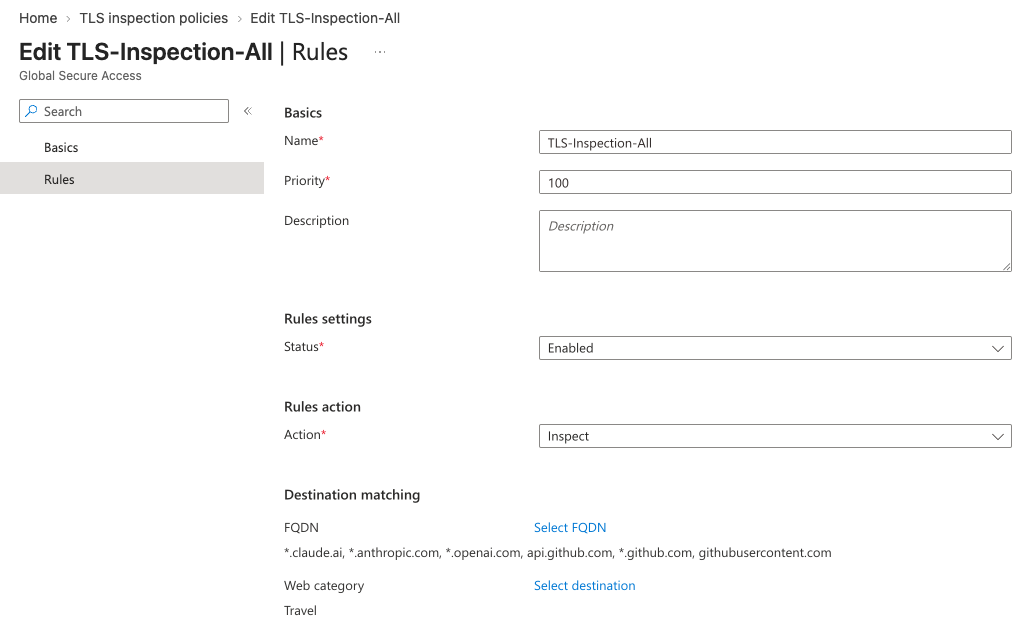
*.claude.ai, *.anthropic.com, *.openai.com, api.github.com,*.github.com, githubusercontent.com
The full FQDN list on the priority 100 inspect rule.
Watch out The auto-created bypass rule at priority 65000 excludes the Education, Finance, Government and Health & Medicine categories. That is sensible for privacy, but if an MCP server you want to govern falls into one of those categories it will never be inspected. Check it.
Step 2 — Create the MCP policy
Now the interesting part. Navigate to Global Secure Access > Secure > MCP policies (Preview) and select + Create policy.
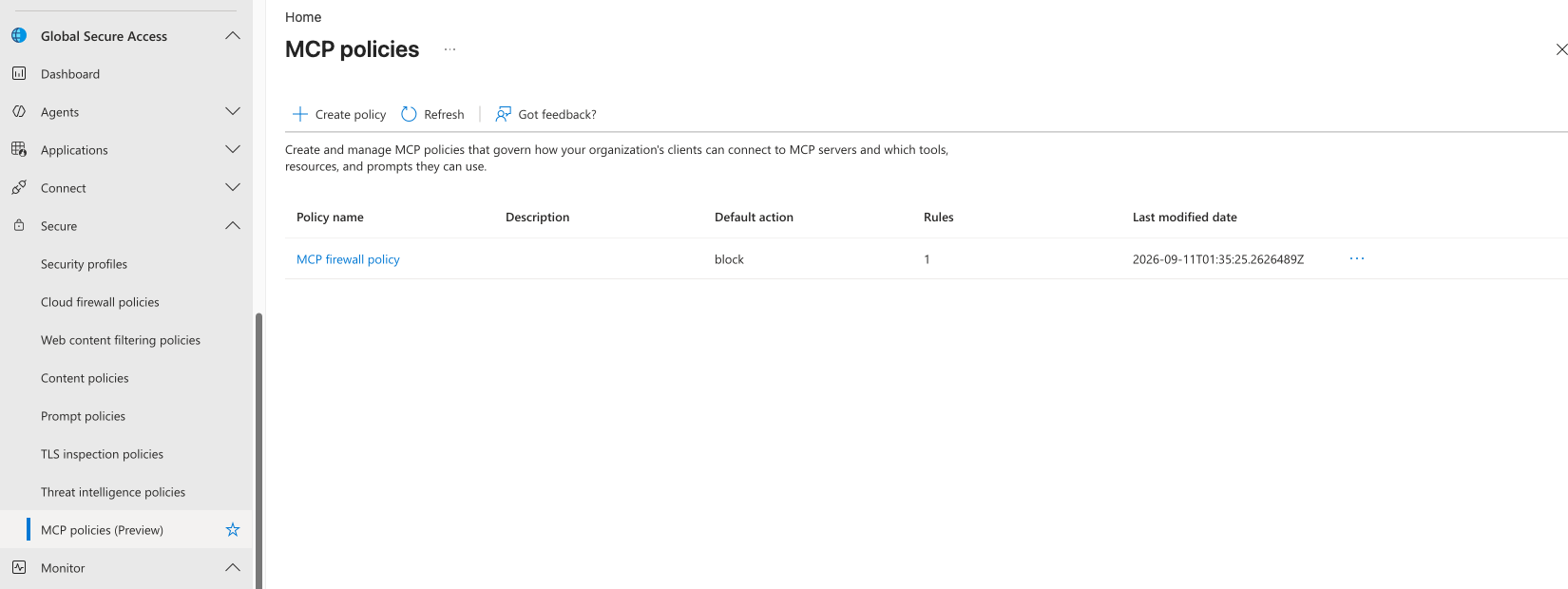
On the Basics tab, give the policy a name and — critically — choose the Default action.
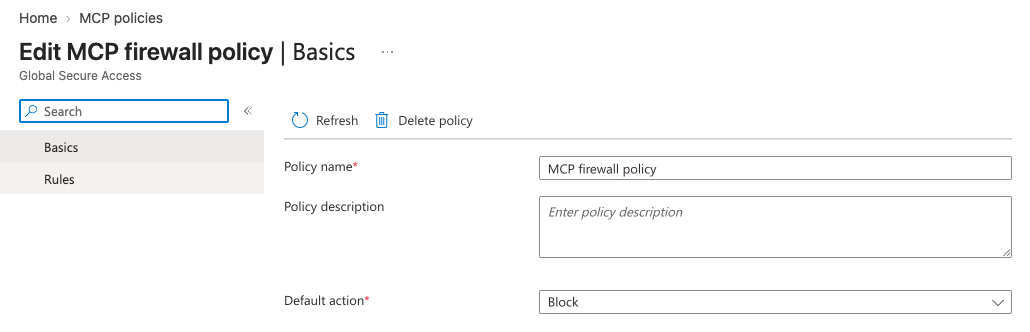
I chose Block. That flips the policy into a default-deny model: an MCP call is refused unless a rule explicitly allows it. It also matches the first scenario in Microsoft’s guidance — “Block all MCP traffic. Disable all MCP communication across the tenant until you review and approve trusted MCP servers.” Lock the door first, hand out keys afterwards.
2.1 How the two actions interact
This is the part of the UI that confuses everyone, because a policy has a Default action and every rule has its own Action, and they look like they should fight. They do not — they fire at different moments:
| Setting | Question it answers |
|---|---|
| Rule → Action | What to do when this rule’s conditions match |
| Policy → Default action | What to do when no rule matched at all |
Rules are evaluated by priority, lowest number first, and the first match wins. The default action is the fallback at the end of that process, not a global override at the start — so a request only ever reaches the default if nothing matched it.
That means the combination you pick defines the posture:
| Default action | Rule action | Resulting posture |
|---|---|---|
| Block | Allow | Allow-list — deny everything except the servers you name |
| Allow | Block | Deny-list — permit everything except the servers you name |
| Block | Block | Full lockdown — nothing passes; the rule is redundant but still useful |
| Allow | Allow | Everything passes; the rule does nothing at all |
Note An Allow rule only has meaning because the default is Block. If the default were Allow, an Allow rule would be permitting something that was already permitted — which is why the pairing matters more than either setting on its own.
Tip Rolling this out in production? Start with a default action of Allow plus targeted block rules, watch the Generative AI Insights logs for a couple of weeks to learn what your developers actually use, then flip to Block once your allow-list is complete.
Step 3 — Add a rule
With the default action already set to Block, the policy is technically complete — nothing gets through. But a policy with no rules gives you no vocabulary in the logs, so I added one rule that names the server I care most about.
3.1 An explicit block rule
The rule targets the GitHub Copilot MCP endpoint and blocks it by name.
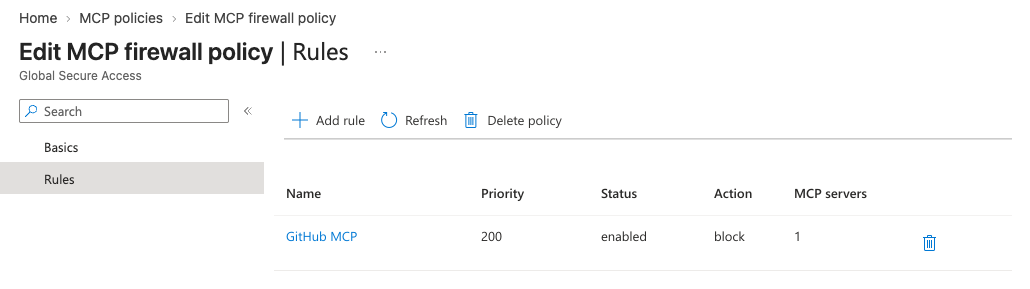
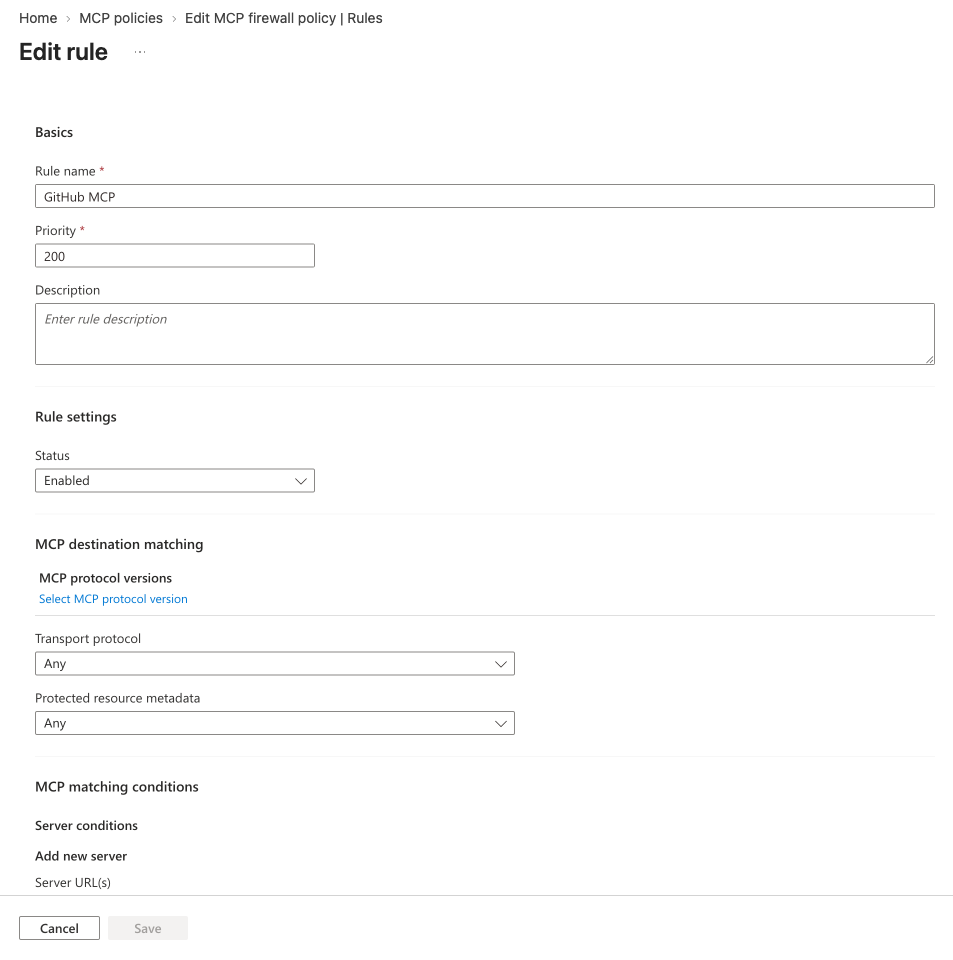
Under MCP matching conditions I added a single server URL and left the primitive conditions empty, which scopes the rule to the whole server rather than to individual tools.
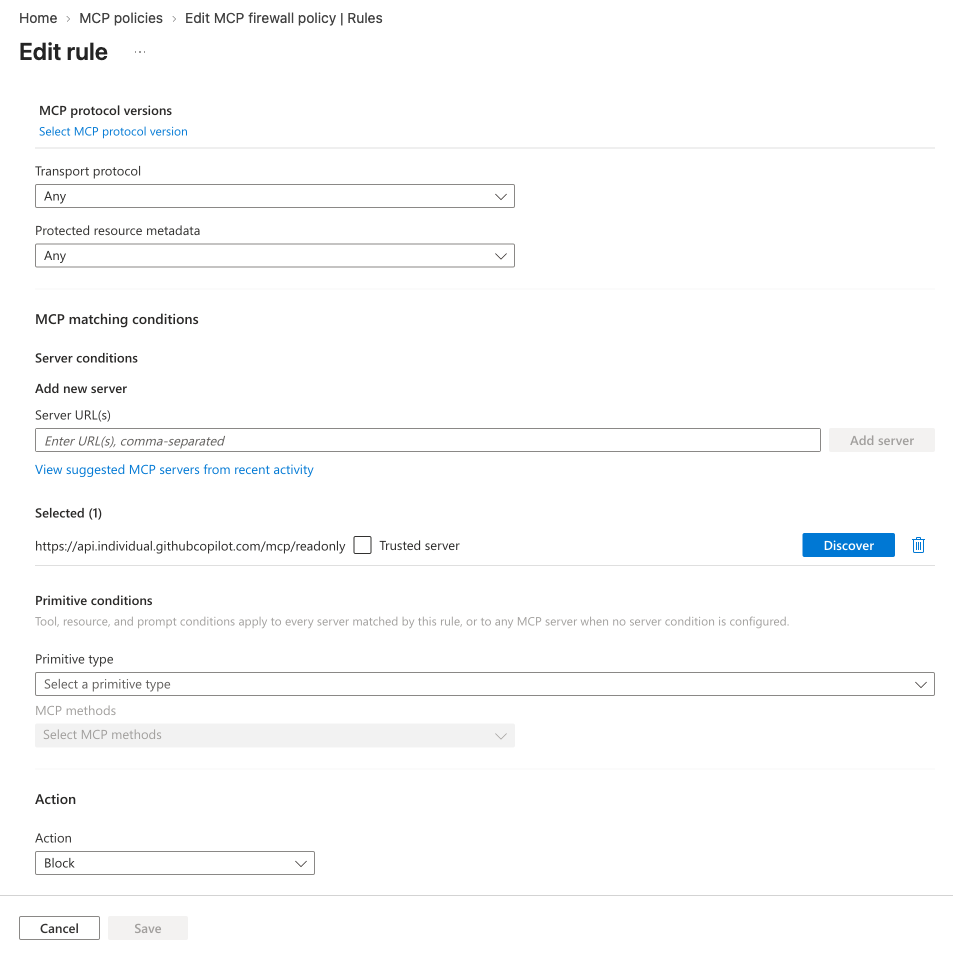
Server URL : https://api.individual.githubcopilot.com/mcp/readonlyMatch type : Exact match
Primitives : (none — the whole server is matched)
Action : Block
The GitHub MCP rule, in full.
3.2 Wait — why block under a Block default?
Fair question. As the table in Step 2 shows, a Block rule sitting under a Block default is functionally redundant: traffic that matches is blocked by the rule, and traffic that does not match is blocked by the default. Nothing passes either way. So why write it at all?
It survives a change of posture. The default action is something you are likely to relax during a rollout. A named rule is an explicit statement of intent that keeps enforcing even if someone later flips the default to Allow.
Watch out There is a real trap here. Under a Block default you cannot tell a working block rule from a broken one, because both produce an identical result. Earlier in this lab I had a rule carrying the validation error “This rule contains multiple primitive types, which cannot match the same MCP request” — it could not match anything, yet the traffic was still blocked, by the default. The correct-looking outcome completely masked the broken rule. To verify a block rule really works, check whether the log names it, or temporarily set the default to Allow and retest.
3.3 Going further — scoping rules to individual tools
Blocking a whole server is the blunt instrument. The more interesting control is the Primitive conditions section of the rule, where you can narrow a rule down to specific Tools, Resources or Prompt templates — so you can keep a server available while removing the handful of capabilities you do not want your agents reaching.
A few things worth knowing before you build one of these:
One primitive type per rule. A rule can match on tools, or on resources, or on prompts — never a combination. Mix them and the portal raises “This rule contains multiple primitive types, which cannot match the same MCP request”, and the rule will not match anything. Split it into separate rules instead. This is the mistake I make most often.
Prefer Contains over Exact match for tool names. Switching the Tool name matching mode to Contains turns the rule into a naming-convention filter — block anything containing delete, write or admin across every tool a server exposes. That scales far better than enumerating tools one at a time, and it keeps working when a server adds new ones.
Watch out Microsoft documents that tools, resources and prompts configured under a rule are not always re-rendered in the portal when you reload the rule. The configuration is still enforced — but do not trust the blank UI. Verify through the Microsoft Graph API and keep your intended configuration somewhere you control.
Step 4 — Link the policy to a security profile
An MCP policy on its own does nothing. It has to be linked into a security profile, which is the unit Conditional Access can actually enforce.
Go to Global Secure Access > Secure > Security profiles, open your profile, switch to Link policies, then choose + Link a policy > Existing MCP policy.
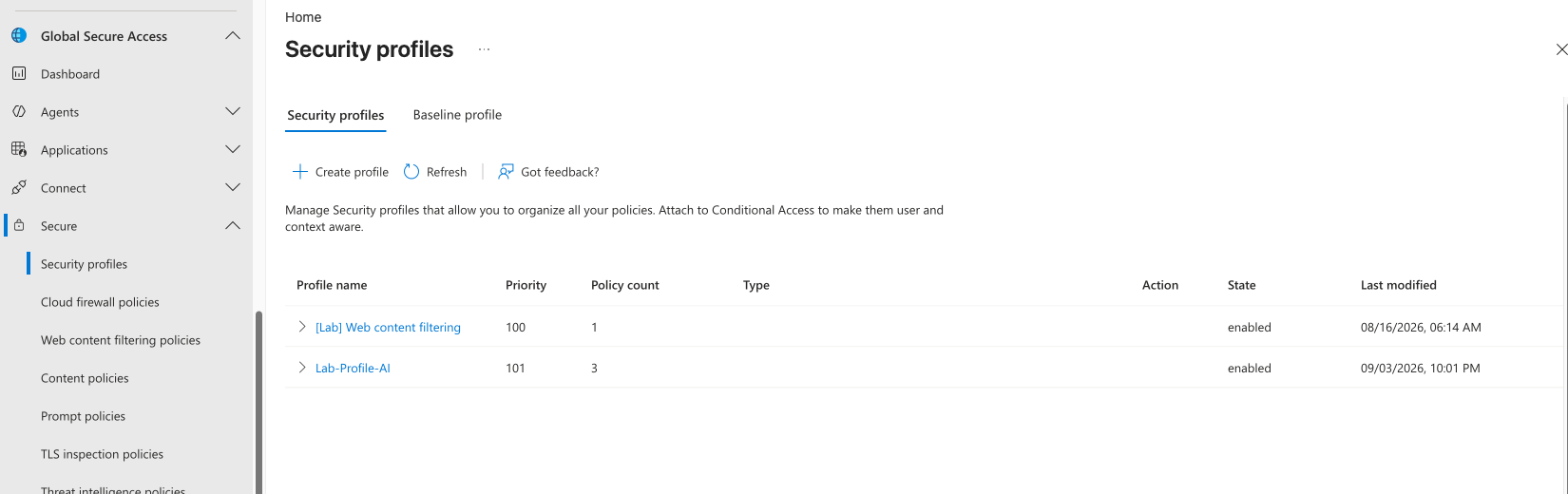
Expanding REDACTED SECURITY PROFILE shows the full stack working together:
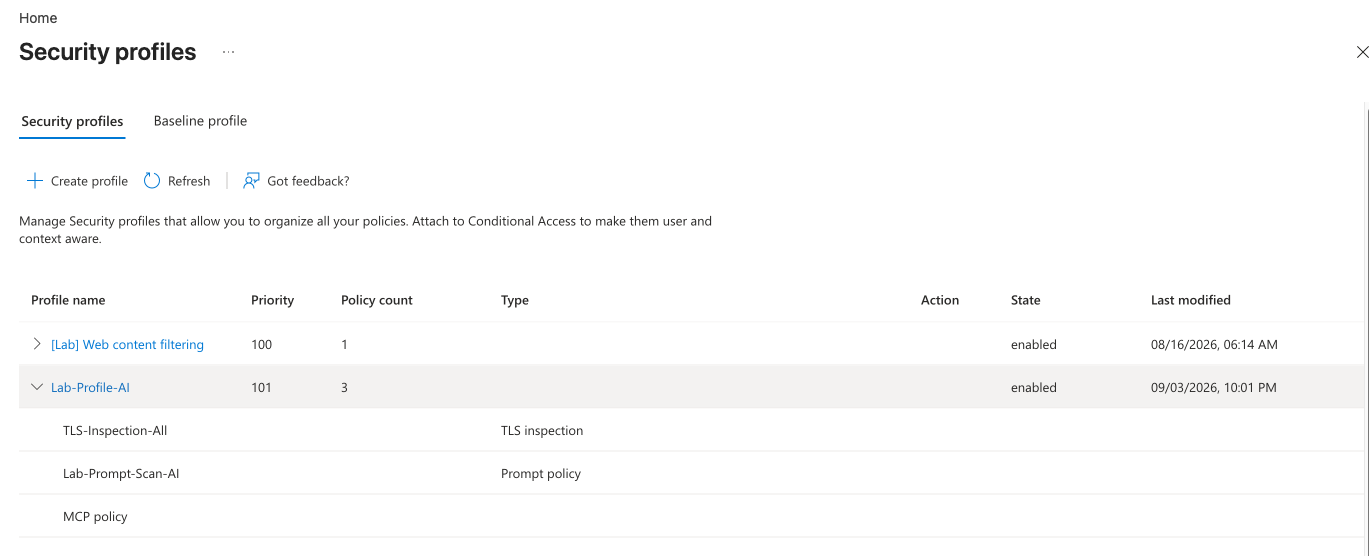
Note Profile priority matters when a user is in scope of more than one profile. Lower numbers win, so check for overlap before you assume your MCP policy is the one being applied.
Step 5 — Enforce with Conditional Access
The final link makes the whole thing identity-aware. Browse to Entra ID > Protection > Conditional Access and create (or edit) a policy.
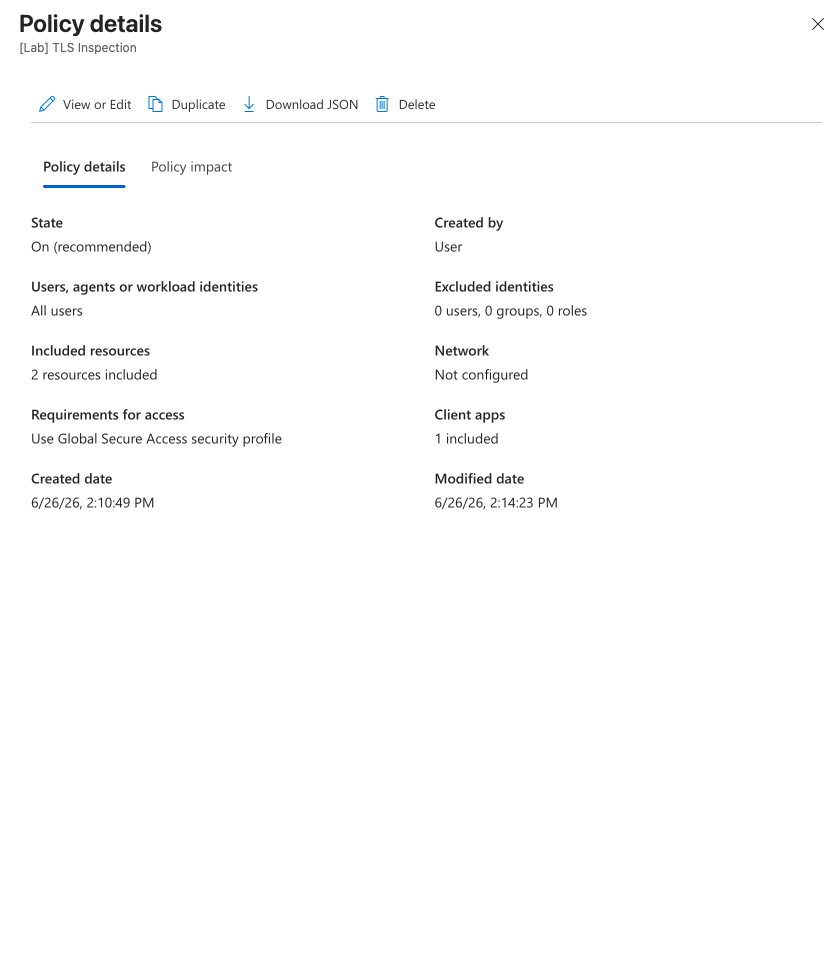
The important settings are:
Target resources — set to All internet resources with Global Secure Access.
Session — tick Use Global Secure Access security profile and pick your profile.
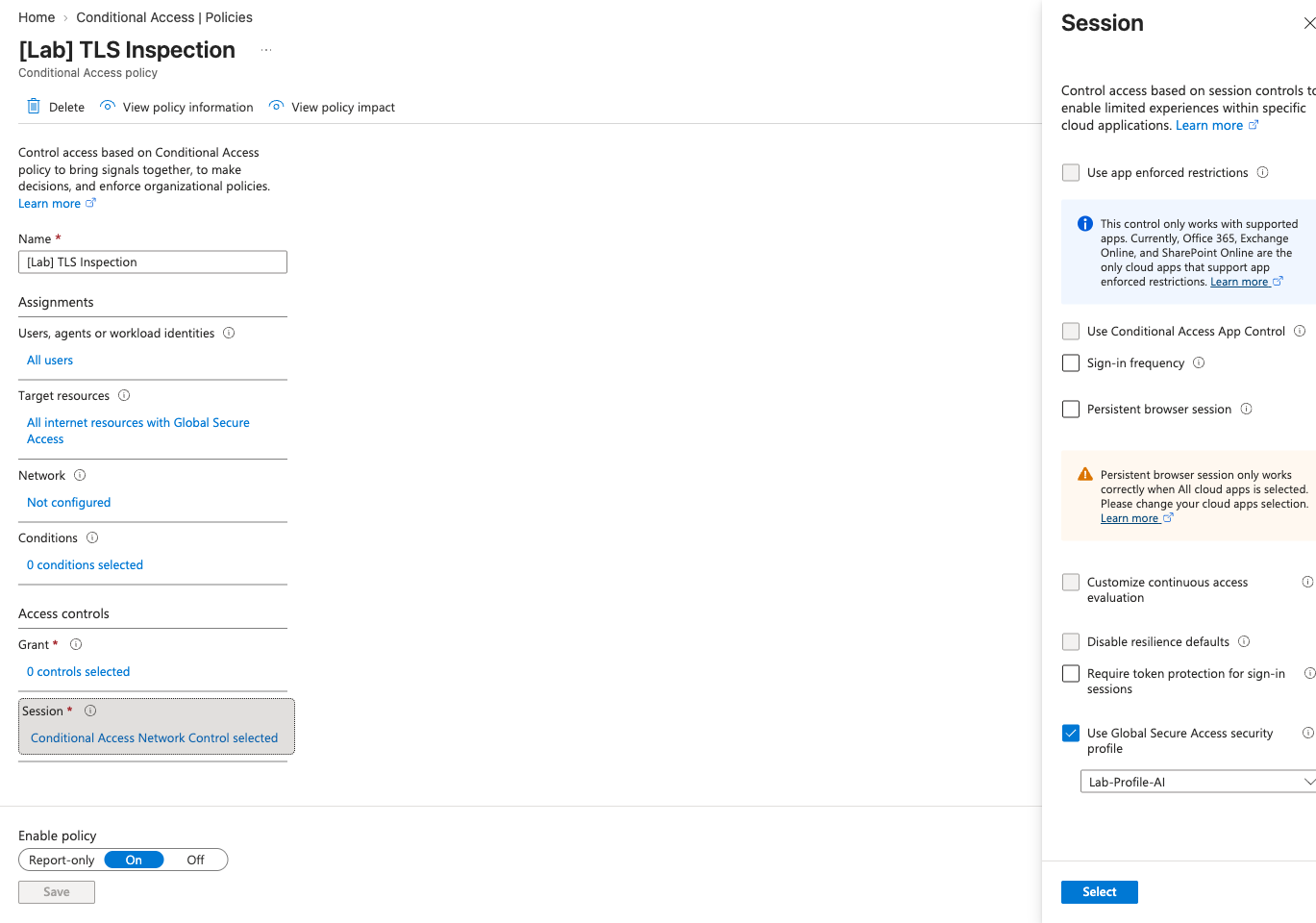
Tip Because enforcement runs through Conditional Access, every signal you already use applies: device compliance, sign-in risk, location, user group. You can allow a broad set of MCP servers on compliant corporate devices and a much narrower set everywhere else.
Step 6 — Test it from a real MCP client
Configuration means nothing until something gets blocked. On my managed Windows 11 device I pointed the VS Code MCP client at the GitHub Copilot MCP endpoint:
{
  "servers": {
    "REDACTED-SERVER-ID": {
      "url": "https://api.githubcopilot.com/mcp/",
      "type": "http"
    }
  },
  "inputs": []
}
“servers”: {
“REDACTED-SERVER-ID”: {
“url”: “https://api.githubcopilot.com/mcp/”,
“type”: “http”
}
},
“inputs”: []
}
mcp.json — the client configuration used for the test.
The connection failed, and the response body tells you exactly who stopped it:
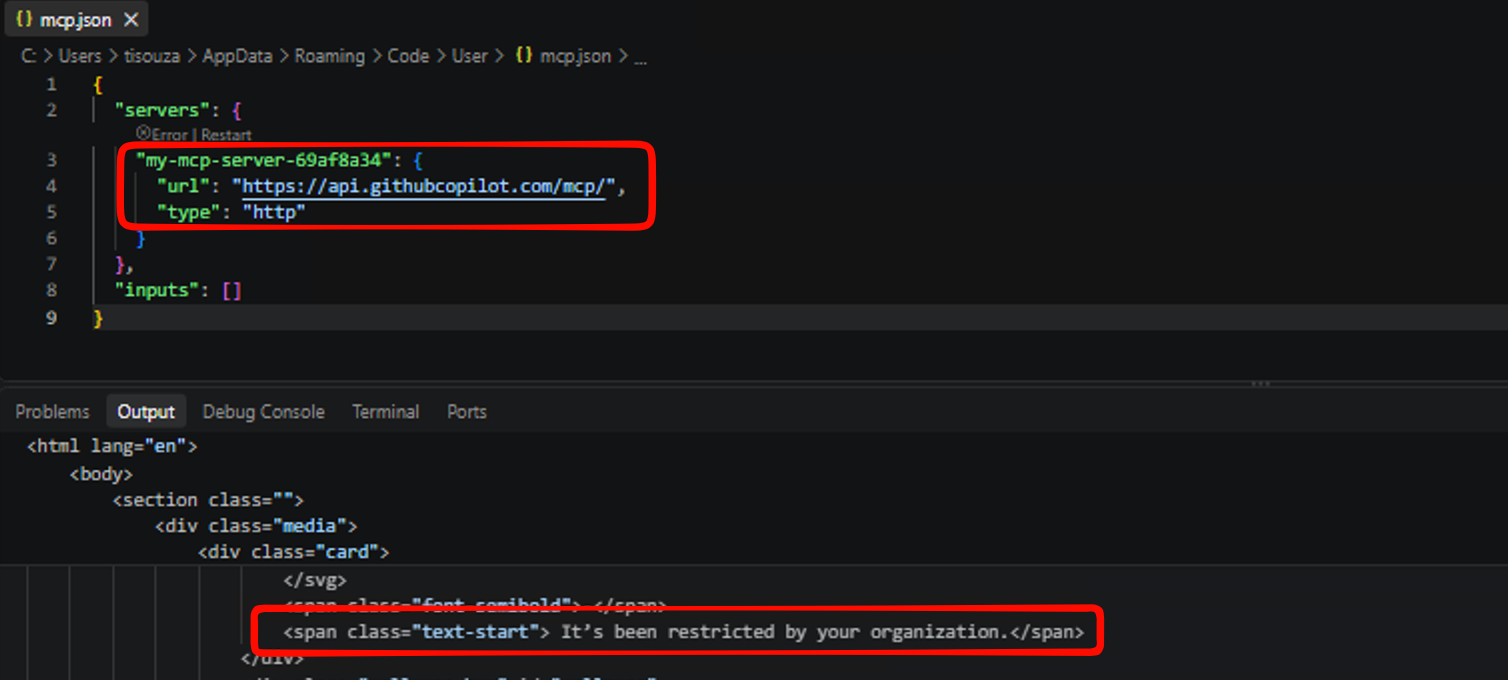
Why this particular call was blocked
This is the most instructive part of the whole lab, so it is worth slowing down. The call was blocked — but not by the rule I wrote.
| What the client requested | What the rule matches | Match? |
|---|---|---|
| https://api.githubcopilot.com/mcp/ | https://api.individual.githubcopilot.com/mcp/readonly | No |
Different hostname, different path, and the rule uses Exact match. No rule matched, so the policy fell through to its Default action — Block. The agent never reached GitHub.
That is default-deny behaving exactly as designed, and it is the whole point: I did not have to predict this endpoint or write a rule against it. Anything not explicitly matched is refused. Had my default action been Allow, this call would have sailed straight through — the rule I wrote would never have touched it.
Step 7 — Verify in the logs
Two places to confirm the decision, and you want both.
7.1 Traffic logs
Global Secure Access > Monitor > Traffic logs, on the Transactions tab. Here you can see the MCP call to api.githubcopilot.com being blocked while ordinary browsing to github.com is allowed — the firewall is discriminating by protocol behaviour, not just by hostname.
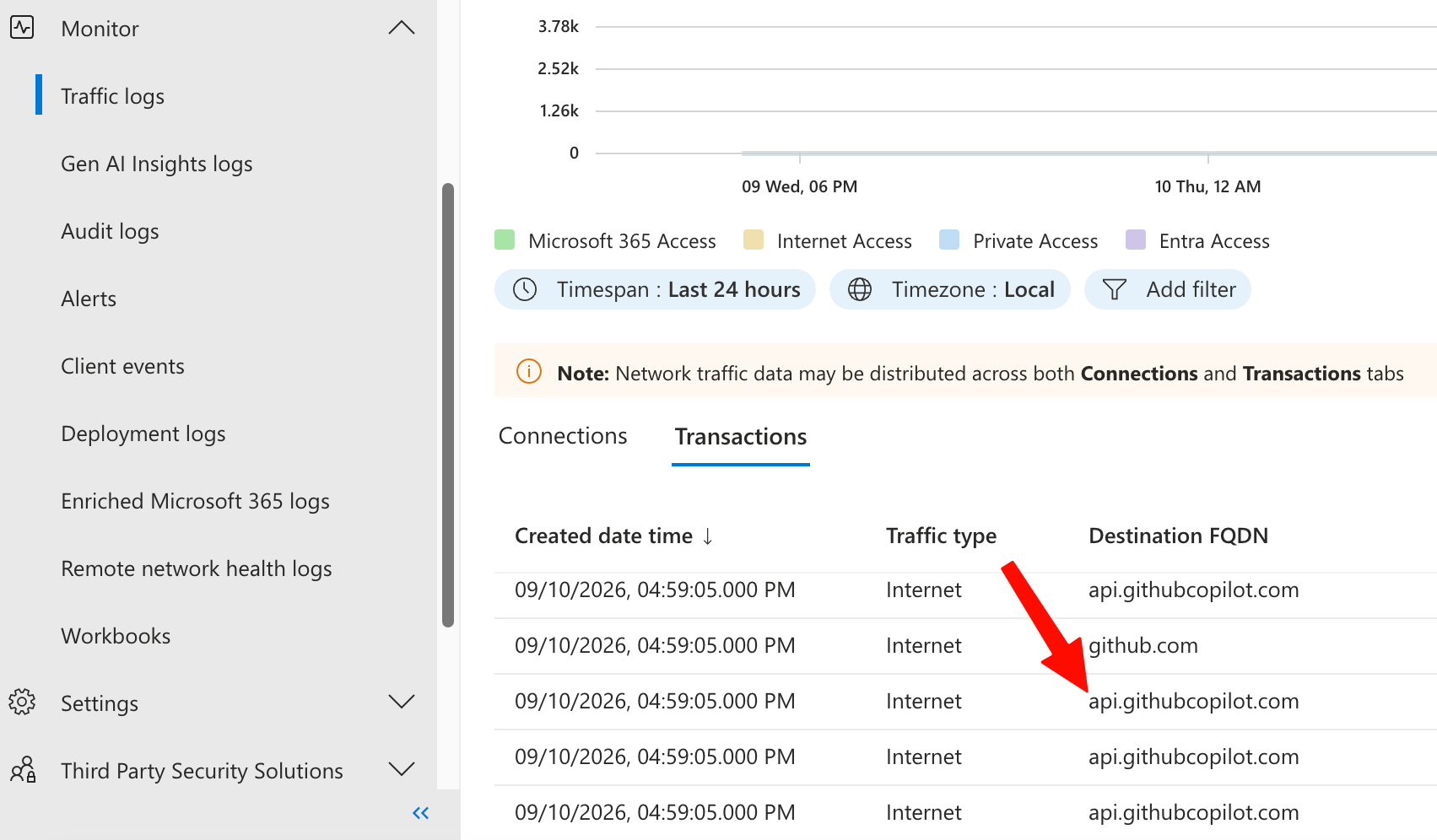
Drilling into a transaction gives you the attribution you need for an investigation:
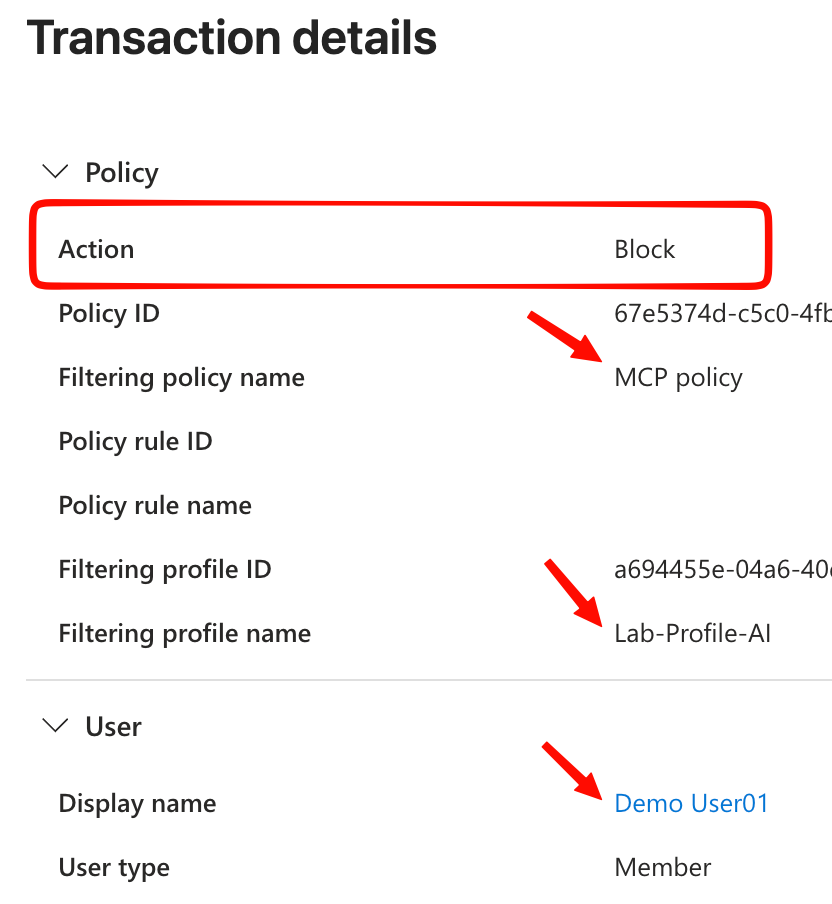
Action Block, the filtering policy that decided it, filtering profile REDACTED SECURITY PROFILE, plus the user principal name and device. That is a complete enforcement story in one pane.
Now look more closely at two fields that are empty: Policy rule ID and Policy rule name. That blank pair is the signature of a decision made by the default action rather than by a rule. If my GitHub rule had matched this request, both fields would carry its name.
Tip This makes the traffic log a diagnostic tool, not just an audit trail. Blank rule fields mean the default action did the work — so if you expected one of your rules to fire and the rule name is empty, that rule is not matching what you think it is.
7.2 Generative AI Insights
For protocol-level detail go to Global Secure Access > Monitor > Gen AI Insights logs and filter Activity to MCP.
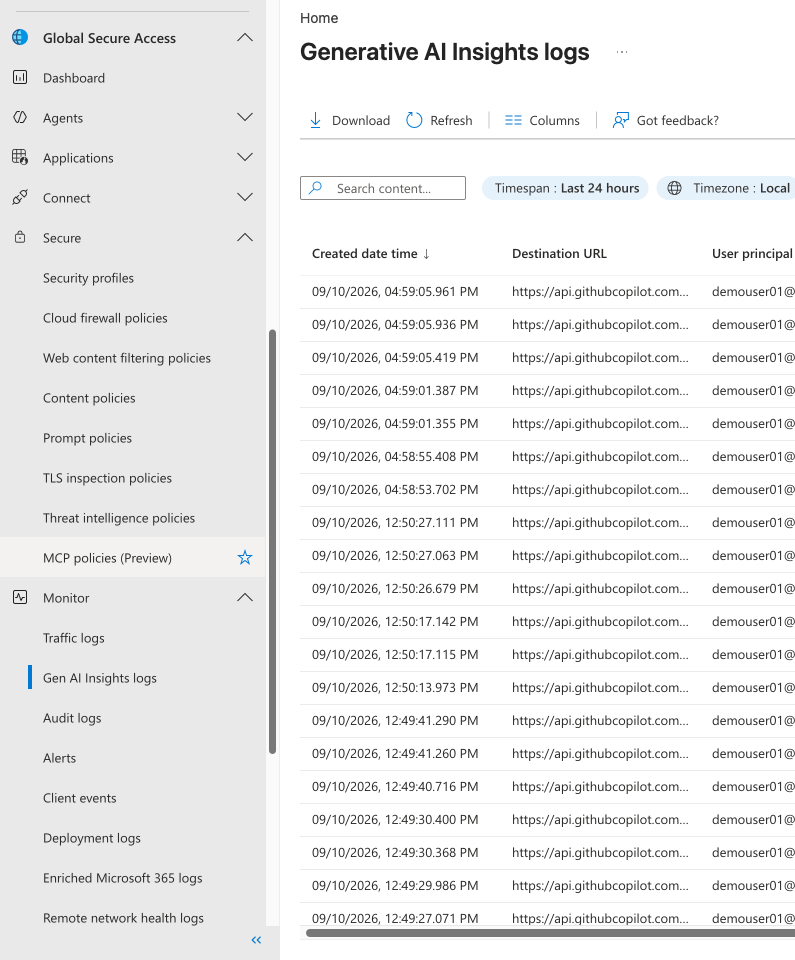
Tip Use this blade before you write rules. Select an initialize response event and you will see the tools and capabilities a server reports. The MCP rule editor can even pull from it directly via View suggested MCP servers from recent activity — far more reliable than guessing URLs.
Lessons learned and gotchas
Exact match is unforgiving. api.githubcopilot.com and api.individual.githubcopilot.com are different servers. Confirm the real endpoint in Gen AI Insights rather than trusting documentation or memory.
One primitive type per rule. Mixing tools, resources and prompts in a single rule produces a validation error and the rule cannot match. Split them.
Configured primitives may not re-render. Microsoft documents that tools, resources and prompts configured under a rule are not always shown when the rule is reloaded in the portal. Verify through the Microsoft Graph API, and keep your intended configuration in source control.
A Block rule under a Block default proves nothing. Both produce the same outcome, so a broken rule looks identical to a working one. Check whether the traffic log names your rule — if the rule fields are blank, the default did the work.
Use Contains for scale. Matching tool names on delete, write or admin governs whole classes of capability without enumerating every tool.
Watch the auto-created bypass rule. The recommended bypass at priority 65000 can quietly exclude destinations you assumed were covered.
Known limitations
Worth knowing before you promise coverage to anyone:
Only remote MCP servers are inspected. A server running locally on the developer’s machine is not seen.
JSON-RPC batches are not inspected.
The feature is in preview, so behaviour and UI can change.
Watch out The stdio and local-server gaps are the ones to plan around. Network controls govern remote MCP; pair them with endpoint controls and developer policy to cover servers running on the device itself.
Wrapping up
MCP is going to be as normal in your environment as HTTPS, and it deserves the same scrutiny. What I like about the Global Secure Access approach is that it needs nothing from the agent: no SDK, no sidecar, no change to the MCP specification. You set a default of Block and every MCP call that is not explicitly matched stops at the edge, with a full audit trail.
Where my lab currently sits is deliberately conservative: default Block, one named block rule, nothing approved. That is Microsoft’s recommended starting position — disable MCP across the tenant until you review and approve trusted servers — rather than a finished design. It is the safest place to begin and the worst place to stop.
The configuration in this post took under an hour end to end, and the bulk of that was TLS inspection — which you very likely want anyway. If you are already running Microsoft Entra Internet Access, the MCP firewall is a small step with a genuinely large payoff.
Next on my list: turning that block rule into a scoped Allow so approved servers work again, narrowing it to read-only tools with primitive conditions, driving the whole thing through the Microsoft Graph API so it lives in source control, and wiring the Gen AI Insights logs into Microsoft Sentinel for detection.
References
View Model Context Protocol (MCP) traffic logs
Configure Transport Layer Security inspection policies
What is Transport Layer Security inspection?