Securing MCP Traffic with Entra GSA – Part I

AI agents increasingly rely on external tools, APIs and data sources to reason and act. The Model Context Protocol (MCP) has emerged as the standard interface between large language models and those tools. That is powerful, and it is also a new attack surface: MCP servers expose capabilities such as file access, database queries and tool execution, and without proper controls a malicious or misconfigured agent can exfiltrate sensitive data, trigger unintended side effects or impersonate a trusted service.
Microsoft Entra Global Secure Access (GSA) brings its Security Service Edge controls to this problem. In this post I walk through what Microsoft documents for protecting MCP traffic with GSA: the MCP firewall, MCP logging in Generative AI Insights, prompt injection protection, the Copilot Studio integration, and how to secure your own MCP server with Entra ID.
Sources and status. Everything here comes from Microsoft Learn documentation only (linked at the end), with no lab results or third-party material. The MCP firewall and Generative AI Insights logging are currently in preview, so names, menus and behaviour might change before general availability.
Why MCP traffic needs its own controls
To a traditional network control, an MCP call is just HTTPS to a hostname. Microsoft’s documentation points out that both prompts and MCP traffic often bypass traditional logging because they travel inside encrypted HTTPS sessions. That leaves a few gaps:
- No visibility. You cannot see which MCP servers people and agents are using, including private or shadow servers.
- No granular control. You cannot allow a server but block a specific tool, resource or prompt template on it.
- No identity context. Network rules that ignore who or what is calling cannot apply Zero Trust principles to AI agents.
- Prompt-level attacks. Prompt injection can make a model ignore instructions, expose sensitive data or perform unintended actions.
Global Secure Access addresses these gaps at a globally distributed edge, without changes to the MCP specification or to MCP clients, hosts and servers.
The building blocks
Microsoft documents several capabilities that work together. Think of them as layers:
| Capability | What it gives you | Where it lives |
|---|---|---|
| MCP firewall (preview) | Inspects MCP traffic and enforces Allow or Block decisions on servers, tools, resources, prompt templates, methods and protocol versions | Global Secure Access > Secure > MCP policies |
| Generative AI Insights (preview) | Unified telemetry for GenAI prompts and MCP traffic, including MCP server discovery and per-event detail | Global Secure Access > Monitor > Generative AI Insights |
| Prompt injection protection | Blocks adversarial prompts and jailbreak attempts before they reach AI models, across any device, browser or app | Global Secure Access > Secure > Prompt policies |
| Copilot Studio integration | Applies network security policies to Copilot Studio agent traffic, including the MCP server connector | Power Platform admin center and the baseline profile |
| Entra ID for your MCP server | OAuth 2.0 access tokens validated on every request, with Entra Agent ID for agent clients | App registrations and your MCP server code |
How it works
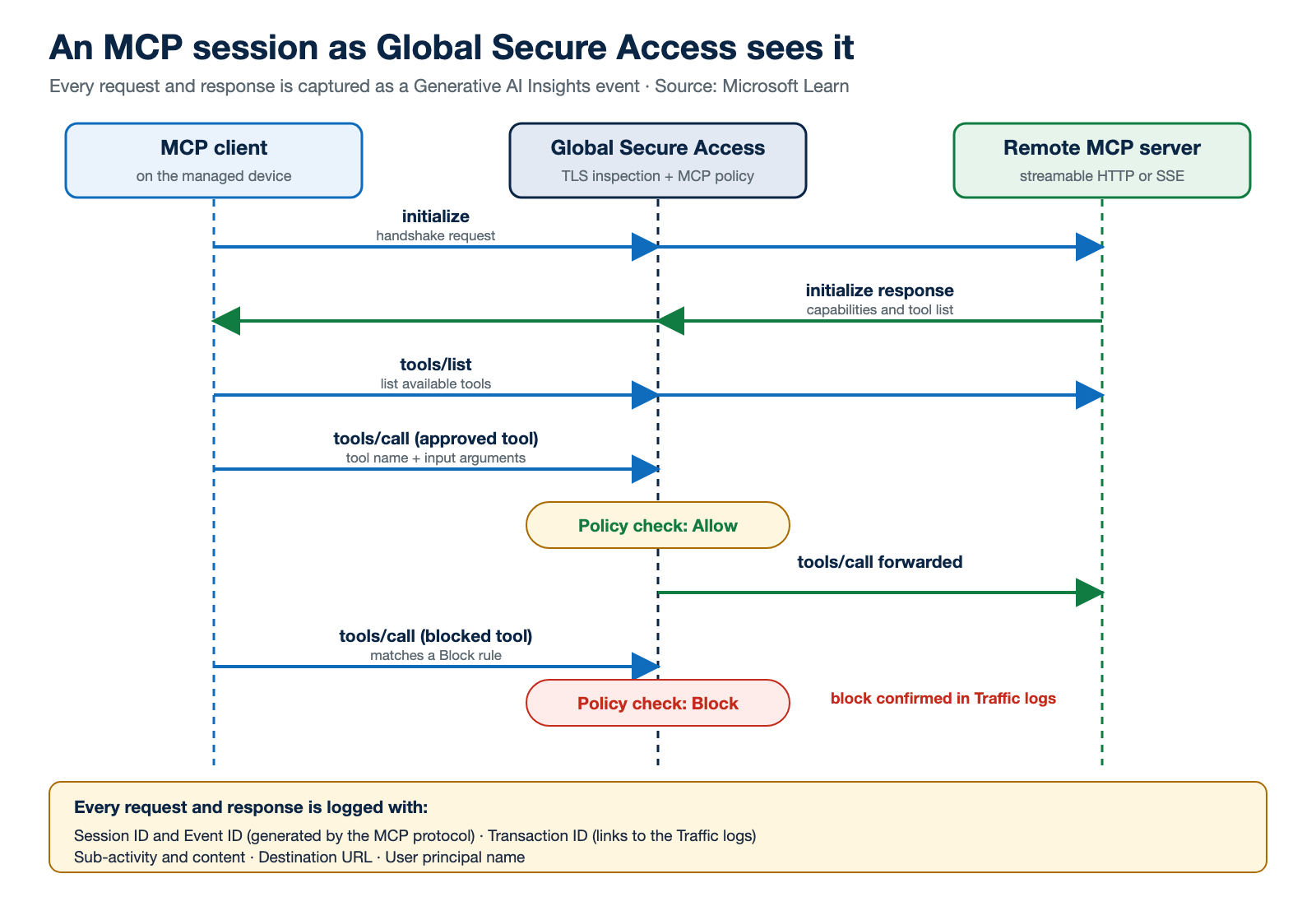
The MCP firewall is a network-based, identity-centric control for MCP traffic between AI agents and remote MCP servers. It extends GSA’s identity-based access, Conditional Access and Continuous Access Evaluation to the MCP protocol layer. It inspects MCP traffic (JSON-RPC 2.0 over streamable HTTP and Server-Sent Events) and enforces Allow or Block decisions.
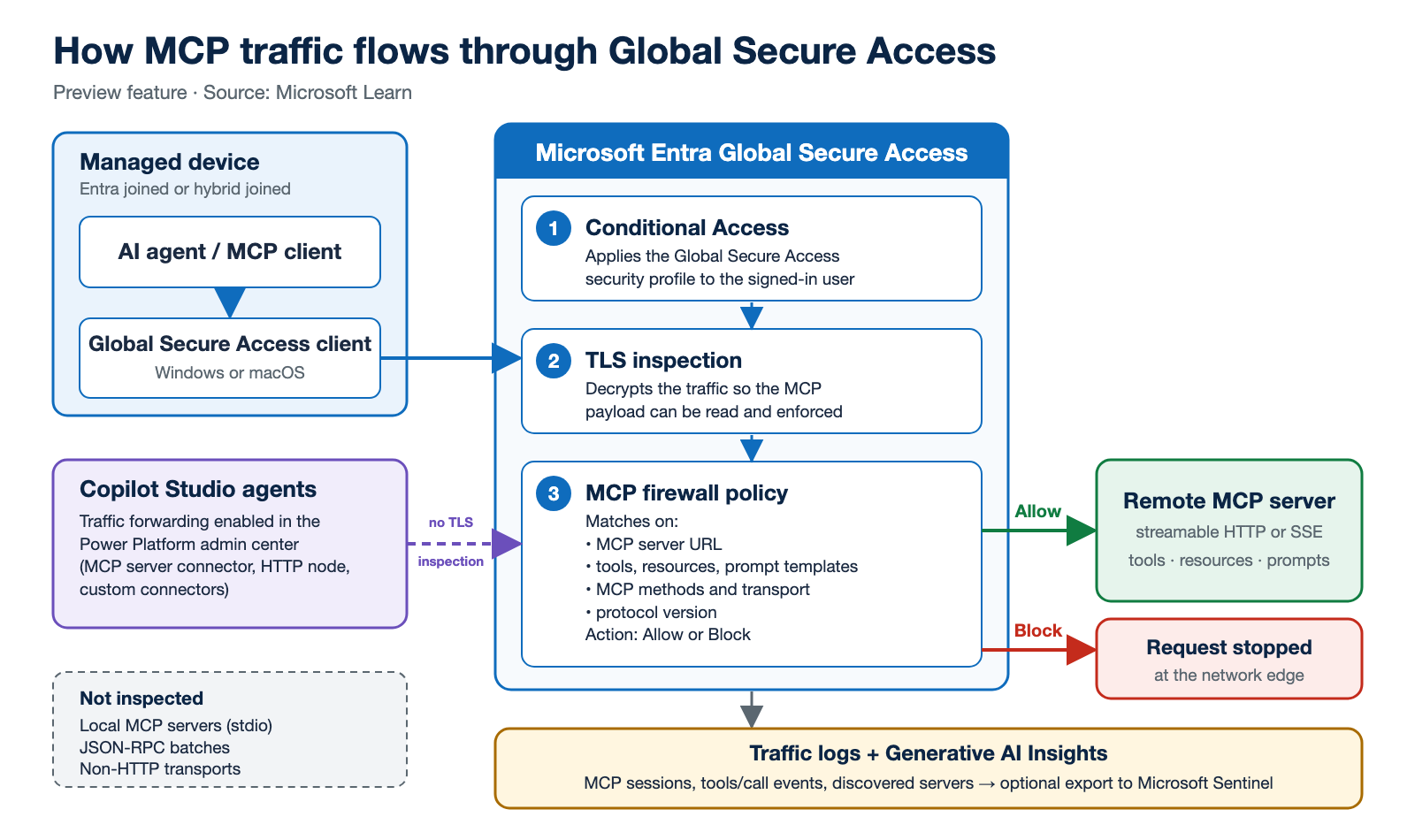
Two details matter for planning:
- TLS inspection is required. MCP messages travel in the encrypted payload, so without TLS inspection Global Secure Access can’t parse or enforce MCP policy.
- Policy is delivered through security profiles and Conditional Access. You create an MCP policy, link it to a security profile, and a Conditional Access policy applies that profile to the users you choose.
What you can enforce
According to the documentation, the MCP firewall supports these scenarios:
- Block all MCP traffic across the tenant until you review and approve trusted MCP servers.
- Allow or block MCP servers by building allow-lists or deny-lists based on server URL patterns.
- Allow or block MCP primitives, meaning Tools, Resources or Prompt templates, on a per-server basis.
- Allow or block methods and protocol versions, for example blocking MCP connection attempts over unencrypted HTTP or connections from outdated, potentially vulnerable MCP versions.
Prerequisites
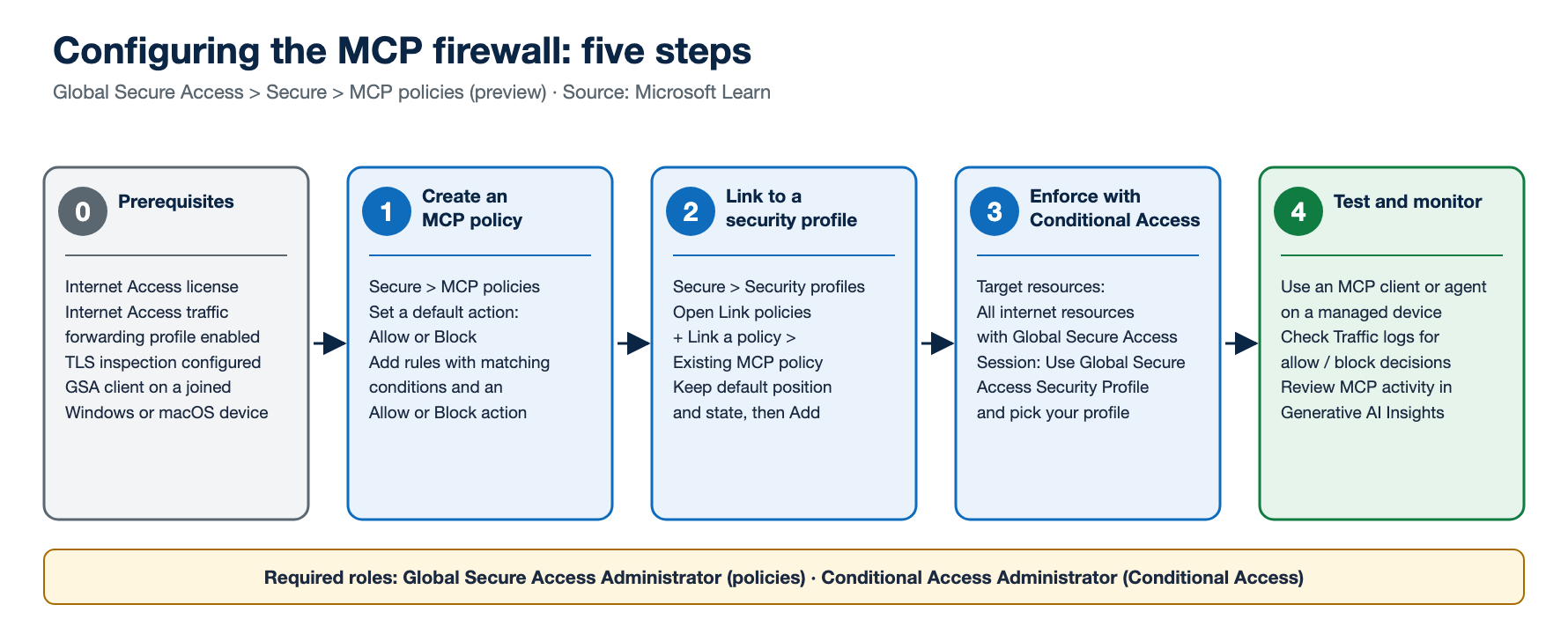
- A Microsoft Entra tenant with a valid Microsoft Entra Internet Access license.
- The Global Secure Access Administrator role to configure GSA, and the Conditional Access Administrator role for Conditional Access.
- The Global Secure Access client installed on a Windows or macOS device (or VM) that is Microsoft Entra joined or hybrid joined.
- The Internet Access traffic forwarding profile enabled, with correct user assignments.
- TLS inspection configured so MCP traffic can be decrypted for inspection.
Before you continue, verify that the client’s internet traffic really is routed through Global Secure Access. In the client, open the Troubleshooting tab, run Advanced Diagnostics, and check the Forwarding Profile tab for Internet Access rules. After you enable the Internet Access profile, this can take up to 15 minutes to reach clients.
Configure the MCP firewall
The documented flow has three configuration steps, followed by testing:
Two policy patterns from the documentation
Microsoft Learn walks through two scenarios that cover the most common starting points:
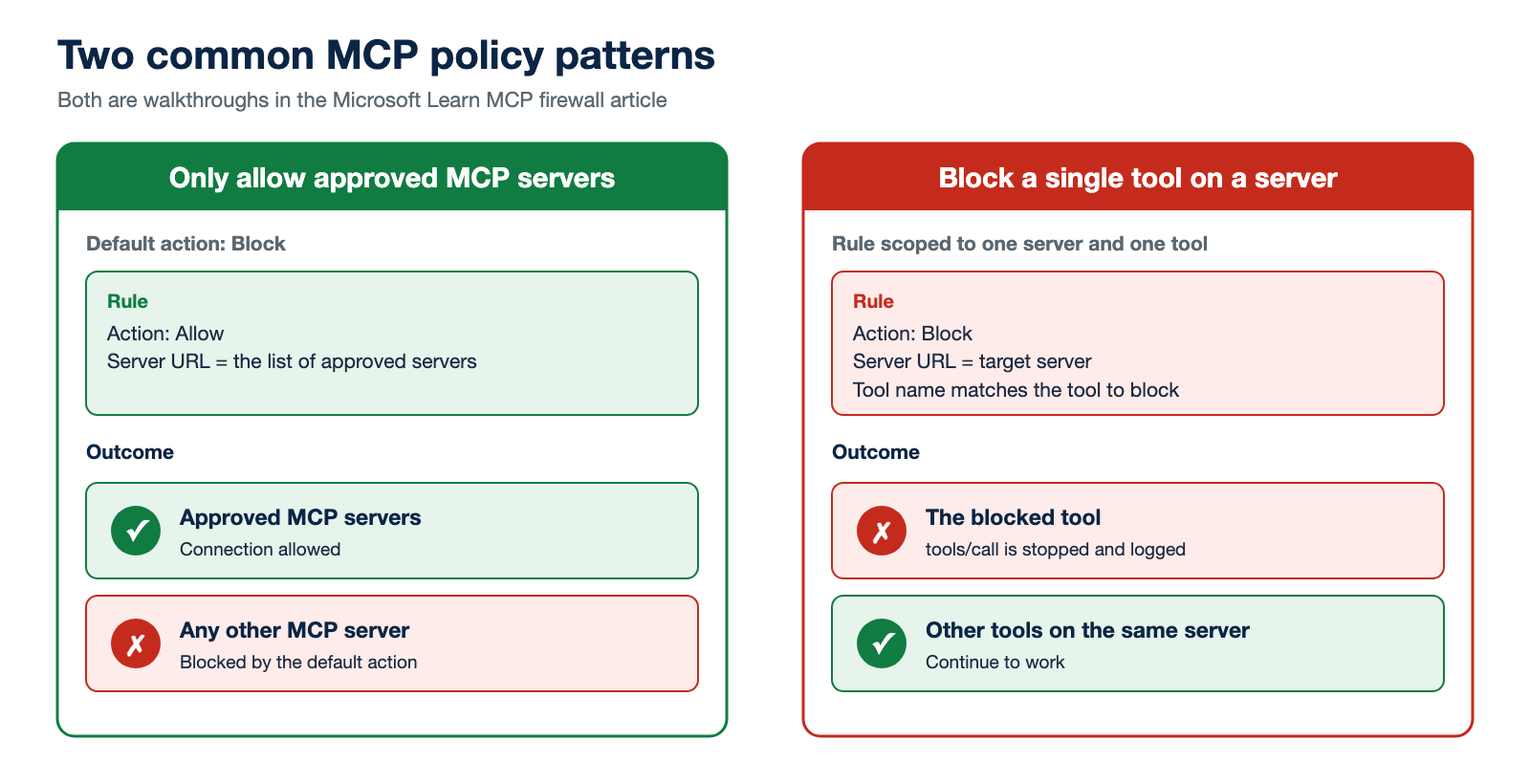
Only allow approved MCP servers. Set the policy’s default action to Block, then add a rule with the action Allow and the Server URL set to your approved servers. Connections to the listed servers work, and a connection to any other server is blocked.
Block a specific tool on a server. Add a rule with the action Block, set the Server URL to the target server and add a Tool name condition for the tool to stop. The blocked tool call is stopped while other tools on the same server continue to work.
Visibility: MCP logging in Generative AI Insights
Generative AI Insights is a unified telemetry surface for generative AI activity flowing through Internet Access. It captures GenAI prompt requests sent to supported AI applications and MCP traffic between AI agents and remote MCP servers, and attributes each event to a user, destination and transaction.
The key point is how discovery works: MCP logging uses deep packet inspection to identify MCP traffic from the protocol itself, not from a predefined cloud app catalog. That lets it surface previously unknown, private or shadow MCP servers. To use it, go to Global Secure Access > Monitor > Generative AI Insights and filter the Activity field to MCP.
What each event contains
| Field | What it tells you |
|---|---|
| Sub-activity | The MCP operation, such as initialize, tools/list, tools/call, prompts/list or prompts/get |
| Content | The payload. For tools/call it includes the tool name and input arguments; for an initialize response, the server capabilities and tools |
| Destination URL | The remote MCP server. This is the reliable identifier, because reported client and server names aren’t guaranteed to be unique |
| Event type and Event ID | Request or response, with a shared ID so you can match each response to its request |
| Session ID | The MCP session, which can contain many events |
| Transaction ID | Links the event to the matching Global Secure Access traffic log |
| User principal name | The user or identity whose traffic was inspected |
You can filter by activity, sub-activity, destination URL and user, and export the filtered results. To keep the data longer, send the NetworkAccessGenerativeAIInsights log category to a Log Analytics workspace through Microsoft Entra diagnostic settings, which is how it reaches Microsoft Sentinel. Microsoft lists shadow AI and shadow MCP discovery, AI usage auditing and AI agent behaviour profiling among its uses.
For end-user devices, MCP logging needs the GSA client with Internet Access forwarding and TLS inspection. For Copilot Studio agents with the GSA integration enabled, TLS inspection isn’t required.
A related layer: prompt injection protection
MCP firewall policies govern the tool-calling channel. The AI Gateway, also part of Microsoft’s Security Service Edge, addresses a different risk: prompt injection against generative AI apps, agents and language models. Prompt injection protection blocks adversarial prompts and jailbreak attempts before they reach AI models, helps prevent unauthorized actions and sensitive data exfiltration, and works across any device, browser or application without code changes.
The setup follows the same pattern as the MCP firewall:
- Enable the Internet Access forwarding profile, configure TLS inspection and install the GSA client.
- Create a prompt policy under Global Secure Access > Secure > Prompt policies, with a rule whose action is Block and a conversation scheme that names the target LLM (or a custom URL and JSON path).
- Link the prompt policy to a security profile and apply it with Conditional Access.
If protection doesn’t seem to apply, Microsoft’s troubleshooting guidance starts with missing TLS inspection, device health checks and QUIC. Because the inspection relies on HTTPS over TCP, it recommends blocking QUIC (UDP 443) to the target AI sites with the cloud firewall so that browsers fall back to HTTPS over TCP.
Don’t forget the MCP server itself
Network controls and server-side authentication solve different problems, and Microsoft’s guidance is to protect an MCP server like any other API: require an OAuth 2.0 access token on every request and validate it before you run a tool. The documentation covers using Entra ID as the authorization server:
- Register the server as an app in Entra ID and set
requestedAccessTokenVersionto2in the manifest. - Set the Application ID URI to the exact canonical URL of your MCP server, because clients send it as the
resourceparameter. - Define scopes such as
tool.readandtool.executefor delegated access on behalf of users. - Optionally define app roles for agent identities that authenticate with the client credentials grant. Assigned roles appear in the
rolesclaim for your server to check. - Use Microsoft Entra Agent ID so an AI agent authenticates with its own identity instead of an embedded secret.
"api": {
    "requestedAccessTokenVersion": 2
}
Important. Microsoft warns against writing your own token-validation logic from scratch. Use a well-tested authentication library or middleware, because validation bugs can silently expose your MCP server.
Protecting Copilot Studio agents
Global Secure Access can also apply network security controls to Microsoft Copilot Studio agents. You enable traffic forwarding in the Power Platform admin center, per environment or environment group, and it covers HTTP node traffic, custom connectors and the MCP server connector. Policies for agents are configured on the baseline profile, so they apply tenant-wide, and they include web content filtering, threat intelligence filtering and network file filtering. MCP logging also covers Copilot Studio agent traffic when this integration is enabled.
Microsoft notes that extending Entra security features to agents requires Microsoft Agent 365, so check the licensing details before you plan a rollout.
Known limitations
- Only streamable HTTP and Server-Sent Events transport is inspected. MCP over stdio or other non-HTTP transports isn’t supported.
- Only remote MCP servers are inspected. Local MCP servers running on a device aren’t visible to Global Secure Access.
- JSON-RPC batches aren’t inspected.
- Tools, resources or prompts configured under MCP server primitives aren’t rendered in the UI when you reopen a rule. Verify them through Microsoft Graph instead.
- Everything depends on TLS inspection for end-user devices, and the features are in preview.
A sensible rollout order
Putting the documented pieces in order gives a practical sequence. This ordering is my reading of the Learn guidance, not a prescribed procedure:
- Prepare the path. Enable Internet Access forwarding and TLS inspection, then verify clients are acquiring traffic.
- Observe first. Review Generative AI Insights to discover which MCP servers and tools are really in use.
- Start restrictive. Microsoft describes blocking all MCP traffic until trusted servers are reviewed, then allow-listing approved servers.
- Tighten the detail. Scope rules to specific tools, resources and prompts, and block unencrypted HTTP or outdated protocol versions.
- Send logs to your SIEM so detection and correlation live next to the rest of your security data.
- Add the other layers. Turn on prompt injection protection and secure your own MCP servers with Entra ID tokens.
Summary
MCP gives AI agents real reach into your systems, and it rides inside encrypted traffic that most controls can’t read. Global Secure Access closes that gap with an identity-aware MCP firewall, protocol-level discovery and logging, and prompt injection protection, all delivered through the same security profiles and Conditional Access you may already use. Add proper token validation on the servers you own, and you have network and application layers working together.
Sources (Microsoft Learn)
- Configure Global Secure Access MCP firewall to secure MCP traffic (preview)
- How to view MCP traffic logs in Global Secure Access (preview)
- Generative AI Insights in Global Secure Access (preview)
- View Generative AI Insights logs in Global Secure Access (preview)
- Protect enterprise generative AI applications with prompt injection protection
- Troubleshoot prompt injection protection
- Secure Web and AI Gateway for Microsoft Copilot Studio agents
- Secure a Model Context Protocol (MCP) server with Microsoft Entra ID
- Enhance threat detection with Global Secure Access in Microsoft Sentinel
Diagrams were created for this article from the Microsoft Learn content above. Photos are from Unsplash, with credit in each caption.